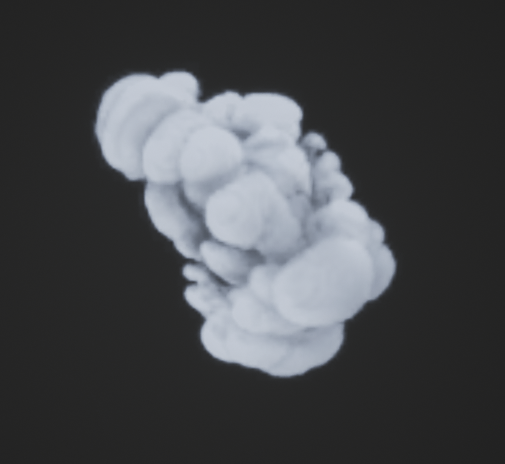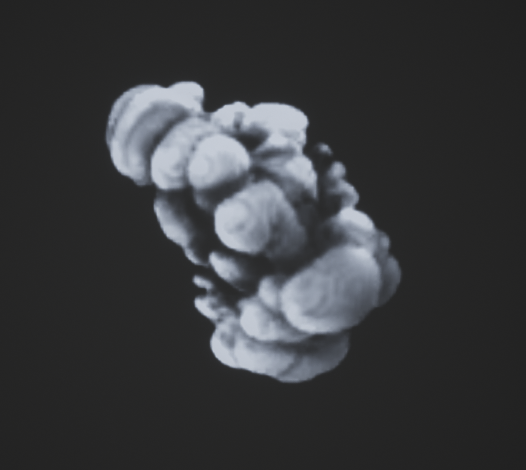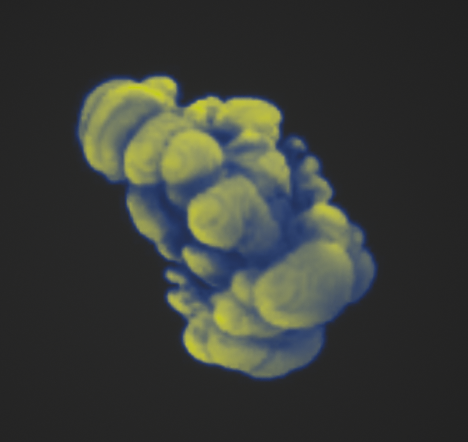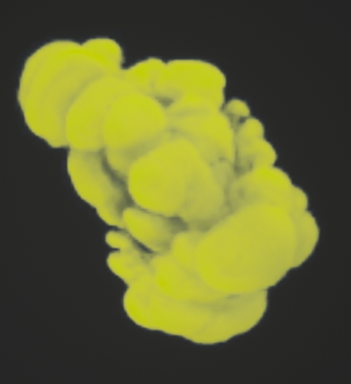
> For the complete documentation index, see [llms.txt](https://hiveminddocs.gitbook.io/hivemind/llms.txt). Markdown versions of documentation pages are available by appending `.md` to page URLs; this page is available as [Markdown](https://hiveminddocs.gitbook.io/hivemind/vfx/smoke-and-fog-vfx-knowledge-base/smoke-and-fog-documentation.md).

# Smoke & Fog Documentation

**Smoke Pack Documentation**

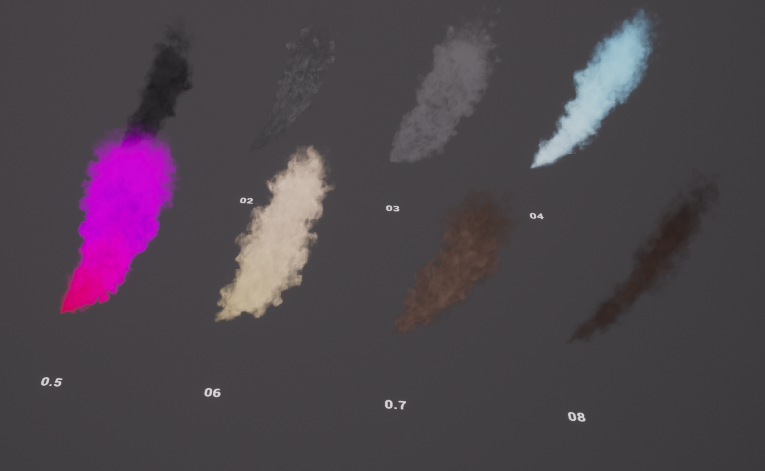
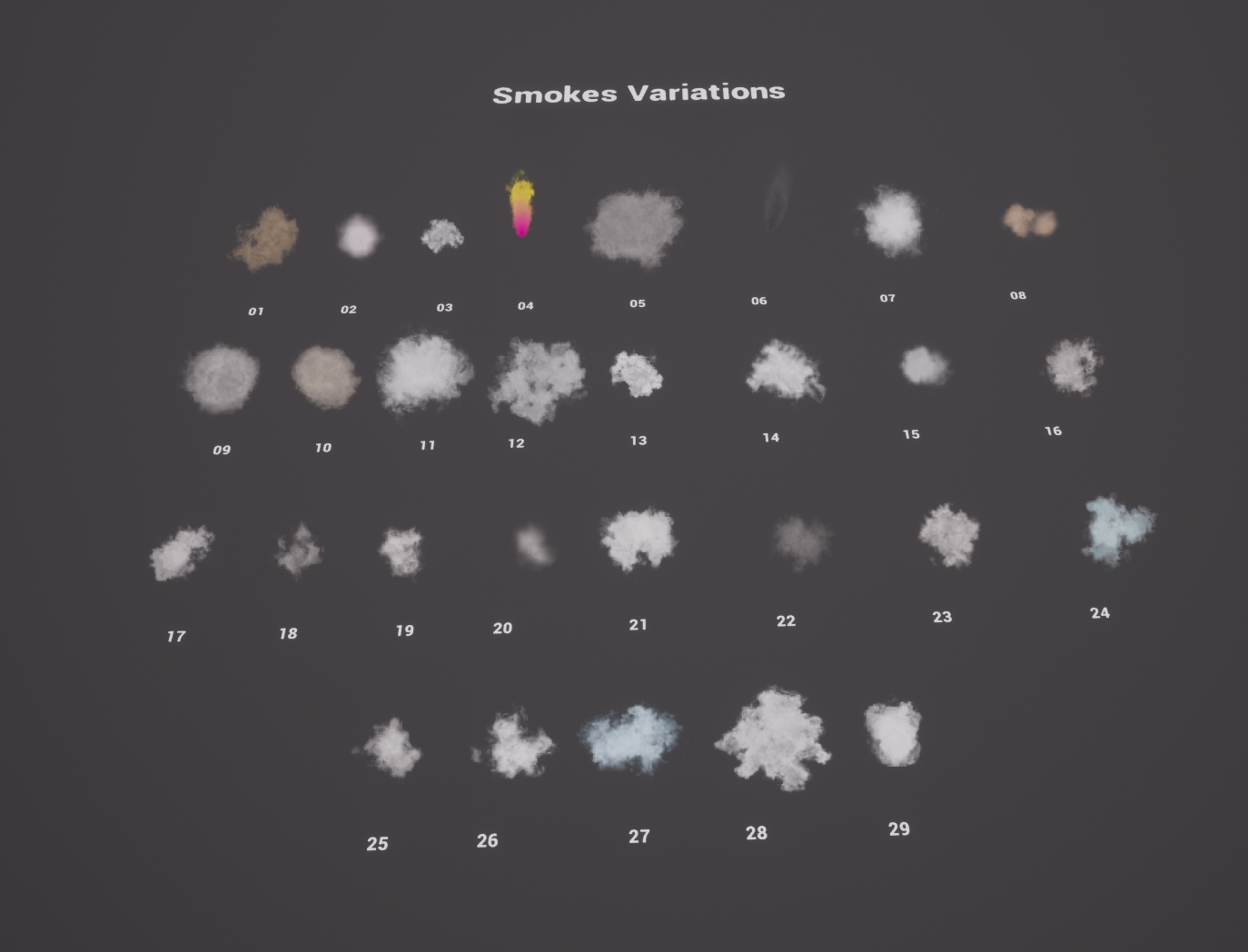
## <mark style="color:blue;">Smokes</mark> <a href="#id-30j0zll" id="id-30j0zll"></a>

<figure><img src="/files/v4r3XAq5AnzqlNnRtTJY" alt=""><figcaption></figcaption></figure>

## <mark style="color:blue;">**Niagara Controls**</mark> <a href="#id-1fob9te" id="id-1fob9te"></a>

Below We Explain The Exposed parameters that you could use to modify the Particles behavior easily:

***

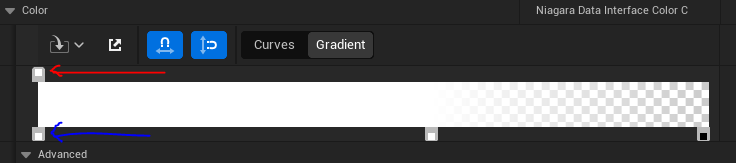
***1) Color***: Uses a Color Curve which enables you to tint with gradient driven by the age of the particle.

<figure><img src="/files/lgYdxDmxZQiLCcse9SQs" alt=""><figcaption><p><em>Red Marker</em>: <em>RGB Color Input</em><br><em>Blue Marker</em>: <em>A Opacity Input</em></p></figcaption></figure>

**2) Lifetime:** Controls how long or quick the duration of the particle.\
A greater range of min max parameter could reduce the pattern repetitiveness.\
\&#xNAN;*MaxLifetime*\
\&#xNAN;*MinLifetime*

**3) Scale:** Controls the size in a random range.\
Utilize the scale randomization to break the shape.\
\&#xNAN;*MaxScaleSprite*\
\&#xNAN;*MinScaleSprite*\
\
4\) **SpawnRadius**: Controls the spawn initial location in a radius metrics.

**5) SpawnRate**: Controls the spawn rate of the particle per every second.

![](/files/7SNG4SknDJmU78jG6Ntn)

***

\ <mark style="color:blue;">**Material Controls**</mark> <a href="#id-3znysh7" id="id-3znysh7"></a>
---------------------------------------------------------------------------------------------------

Parameters on the material instances are also available for the smoke shading flexibility.\
Control necessary shading controls such as alpha exponent, exposure, values and colors using the following:

***

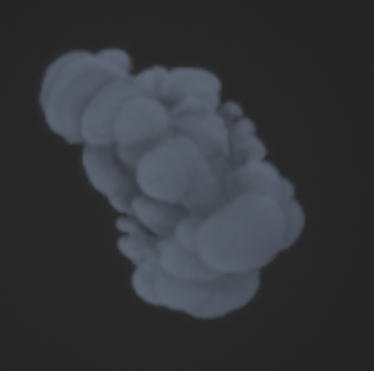
**1) AlphaPower**: Controls the opacity exponent. Use it whether to increasing the negative spaces on your texture or increasing the overall density.

{% hint style="info" %}
*Above: AlphaPower: 1.0 - Below: AlphaPower: 5.0*
{% endhint %}

<figure><img src="/files/8mFBuPx0XyE8NLAiOZgQ" alt="" width="253"><figcaption><p><em>AlphaPower: 1.0</em></p></figcaption></figure>

<div align="center"><figure><img src="/files/wXxVLEmSU2fj6RU8VJH9" alt="" width="263"><figcaption><p><em>AlphaPower: 5.0</em></p></figcaption></figure></div>

\
2\) **ColorPower**: Controls the color exponent of the blending of *Color1* and *Color2*

{% hint style="info" %}
*Above: ColorPower: 5.0 - Below: ColorPower: 1.0*
{% endhint %}

<figure><img src="/files/BbmIP2sFJIf57BDGb3ge" alt="" width="234"><figcaption><p><em>ColorPower: 5.0</em></p></figcaption></figure>

<figure><img src="/files/nxVCyzJvRoBZwq4gXkiF" alt="" width="176"><figcaption><p><em>ColorPower: 1.0</em></p></figcaption></figure>

\
3\) **DepthFade: i**s used to hide unsightly seams that take place when translucent objects intersect with opaque ones.

**Exposure:** Controls the overall texture brightness

\
4\) **MotionVector\_Intensity**: Controls the motion vector distortion intensity. As much as possible leave the default value, to avoid any weird artifacts.

\
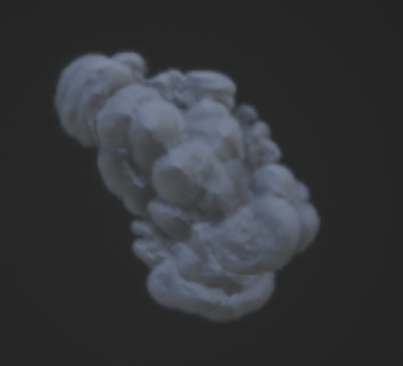
5\) **NormalFlatness**: Controls the normal intensity

{% hint style="info" %}
*Above: NormalFlatness: 1.2 - Below: NormalFlatness: 5.0*
{% endhint %}

<img src="/files/8BxEK27WWVB7bm3rbqty" alt="NormalFlatness: 1.2" width="187">

<div align="center" data-full-width="true"><img src="/files/dU90awituIdJ7EEkQ3pC" alt="NormalFlatness: 5.0" width="202"></div>

***

## <mark style="color:blue;">**Optimization**</mark> <a href="#id-2et92p0" id="id-2et92p0"></a>

### Texture Size

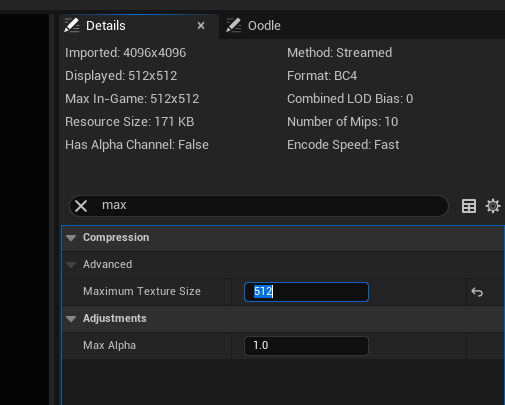
Textures included in the *EnvironmentSmokes* folder are native 4k which in fact could be expensive for realtime vfx for games. But could be very useful for cinematics to maximize the quality.

In order to change the texture **Max In-Game** so to make it game ready.

<div align="left"><figure><img src="/files/6728LsdxSdxbB0zJf9VI" alt=""><figcaption><p>Changing Maximum Texture Size For Optimization</p></figcaption></figure></div>

Go in texture details, search for **Maximum Texture Size**. It defaults to 0. You can set it to 512 or 1024 (Make sure it is power of 2) depending on your needs.

### **Cutout (Implemented For You By Default)** <a href="#tyjcwt" id="tyjcwt"></a>

It is always better to use polygon rather than overdraw by default.

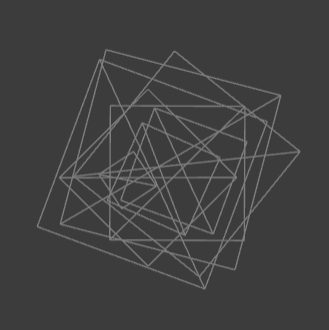
Above: Uses a spherical cut out, which remove the excess overdraw from the edges.\
Below: Default overdraw of a translucent particle regardless of the visual.

<img src="/files/BxLRgijImqYGKOkIpug2" alt="Spherical cut out" width="247">

![No cut out](/files/h1Jpj5fVjUFGNxkyEFQW)

The Smoke Pack comes with the cutout feature already. In case you have to modify it further you can access it in SpriteRenderer -> Cutout.

![Sprite Renderer](/files/vl6ZLapB8KsB4KDrxqmD)

![Cutout](/files/pPUo1V6CNRp3GhqHN6tY)

## <mark style="color:blue;">Smokes Plumes</mark> <a href="#id-3dy6vkm" id="id-3dy6vkm"></a>

<figure><img src="/files/yE8KlCmwyGV7ClIdqWot" alt=""><figcaption><p>Smoke Plumes</p></figcaption></figure>

### **Setting up the Smoke Plumes**

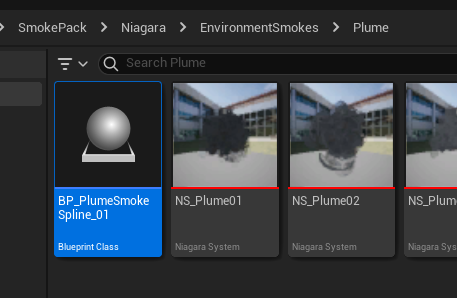
Firstly, find the BP\_PlumeSmokeSpline\_01

<figure><img src="/files/S0MweRwEcRMAMUFsInFN" alt=""><figcaption></figcaption></figure>

The parameters for the blueprint are the same ones that we covered above, utilize them to modify the look and feel of your smoke plumes.\
\
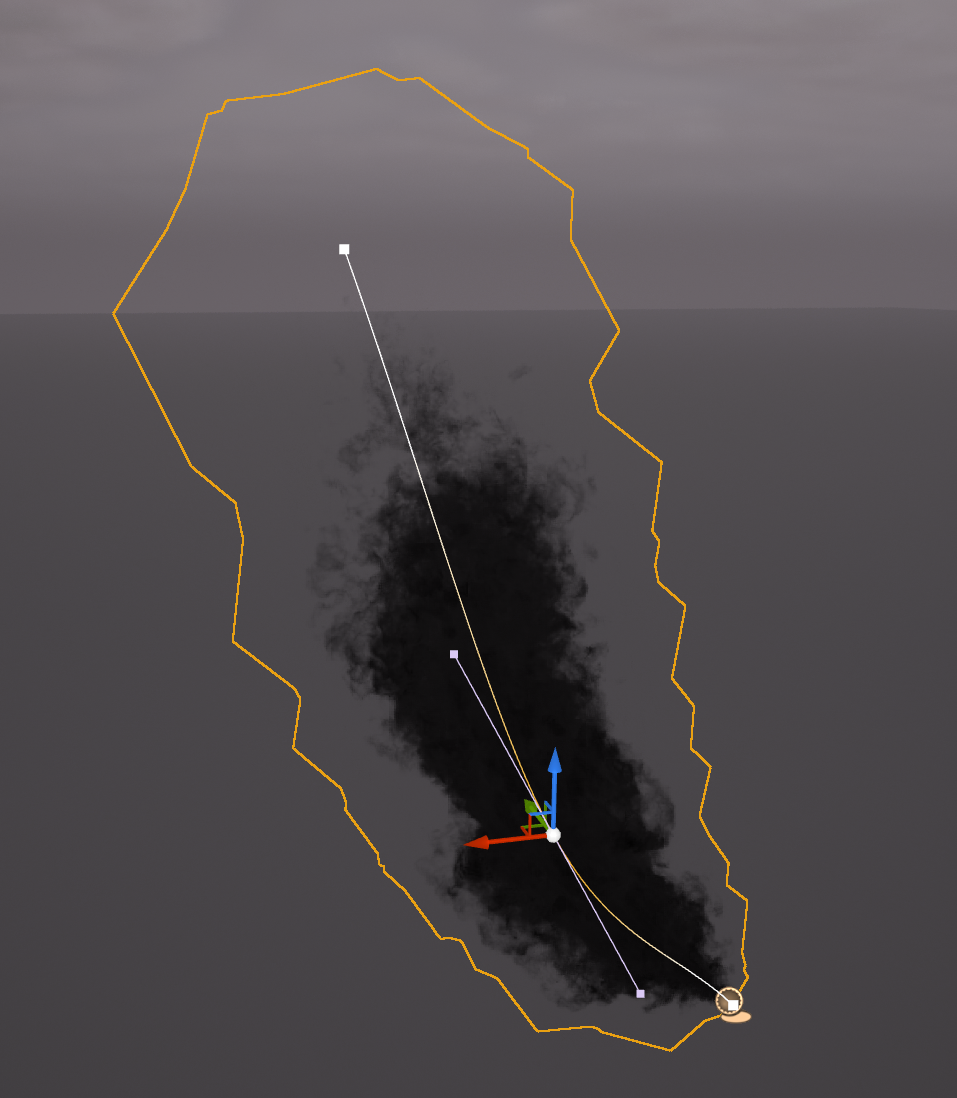
Once you drag the blueprint, there is already a default template provided.

<figure><img src="/files/yBX1P97y3Prc4i6jBcab" alt="" width="375"><figcaption><p>Default Template</p></figcaption></figure>

A particle that follows the spline position starting from the bottom to top.\
You can add additional spline points by right clicking the spline gizmos to add more spline points.

\
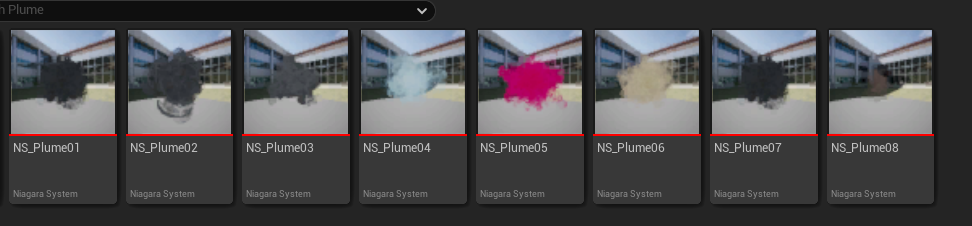
There are also various templates provided. All you have to do is to copy the parameters from the Niagara systems (Pictured Below) into the Blueprint. Utilize the entire smoke library and parameters covered above to create a vast array of variations.

<figure><img src="/files/oxK6j88gBQnkjCEfB6XZ" alt=""><figcaption><p>Smoke Plume Templates</p></figcaption></figure>

## <mark style="color:blue;">**Fog Cards**</mark> <a href="#id-4d34og8" id="id-4d34og8"></a>

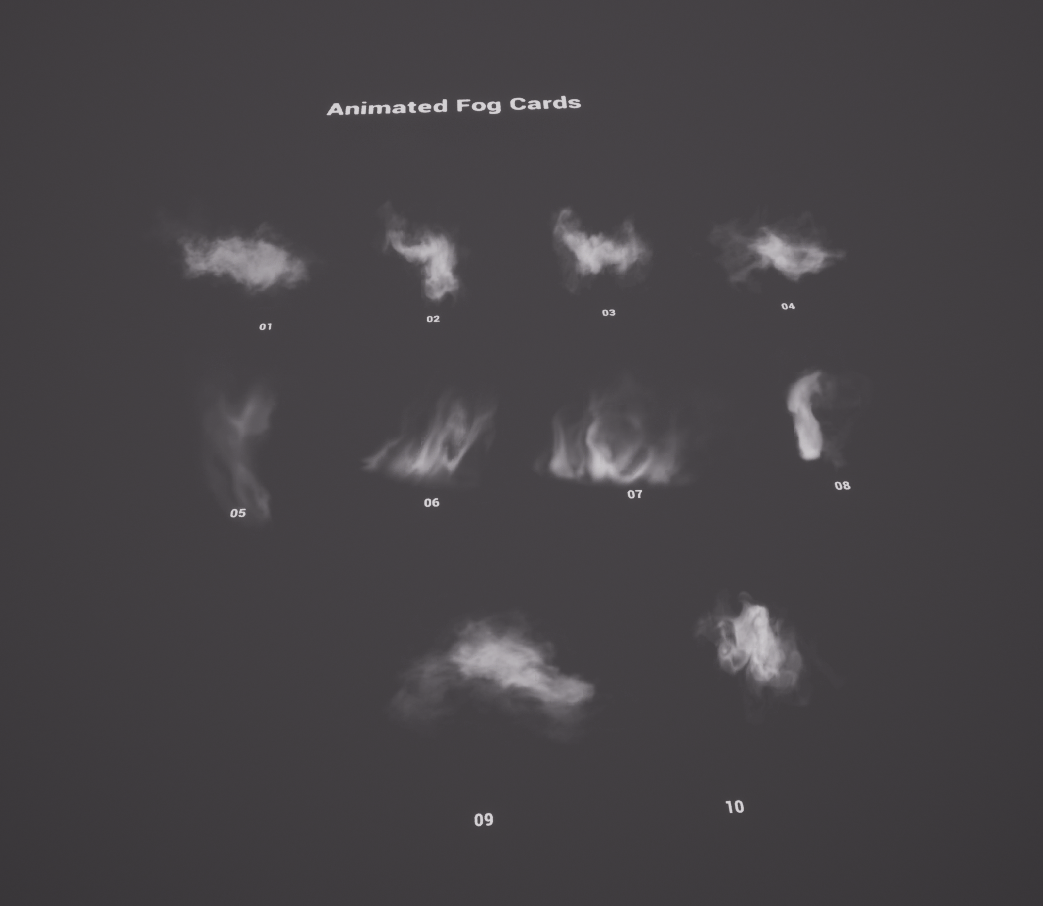
The package contains two fog card versions:

### **Animated** <a href="#id-2s8eyo1" id="id-2s8eyo1"></a>

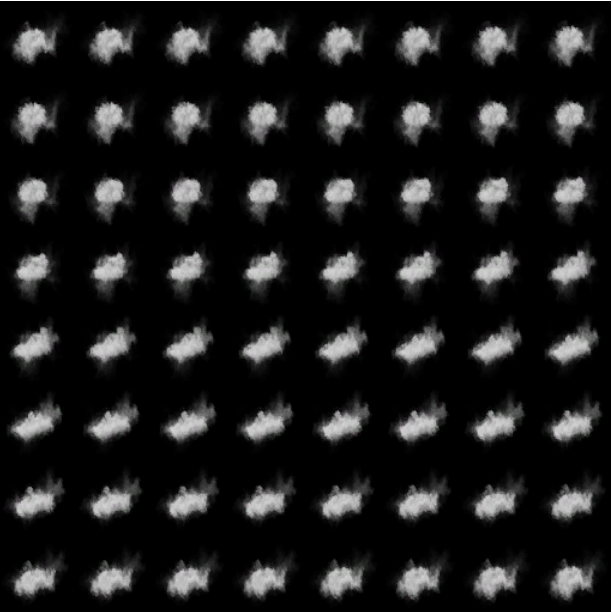
A spritesheet based effect that loops infinitely. Great to use to add movement to your scene.

<figure><img src="/files/hpdq0ZKnKXQNqWqJWpCQ" alt="" width="459"><figcaption><p><em>Texture sample - T_FogCards_01_RA</em></p></figcaption></figure>

<figure><img src="/files/e2gLrp9RWASsvdOXPQdW" alt="" width="563"><figcaption><p>Animated Fog Cards</p></figcaption></figure>

### **Static** <a href="#id-17dp8vu" id="id-17dp8vu"></a>

A single image texture that should be used for environmental effects. Use these to optimize performance and when movement is too hard to perceive (For example distant mountain fog)

<br>

<figure><img src="https://lh7-rt.googleusercontent.com/docsz/AD_4nXeJrmMtB_BsGbiD_xZqAiON9VMvSRUVUTCoUp93zPjvfBK3GW6PrTfQkDSOQAkI4ZJr-ONhR3WFR3NVwildqQZUwThsBVkq1wHRp_bRh6LinHe2pZah_EZrP9t_UHmpAFBQ6QAJvzKwgCYc_cbGTpsly34VnK_eDNpPLHSv?key=f4Ng3z6BPMLNDtF9pcVU0w" alt="" width="375"><figcaption></figcaption></figure>

<figure><img src="https://lh7-rt.googleusercontent.com/docsz/AD_4nXek0wUpwx9bvIvo3mkWxpGGNJ26ib07qFLBtI-YmxJ0udi5gAvQLOACKcSoglX9SSi9wgEWkbyo7MRd8ScIcM3ZU0foKR2o67pSKYNk1DLwp9PZ4ZAiljpkmAsxdxS2I1XEHxtvC8S1pEVGytS-XVgqMH38e0pX29Z54Wo-SQ?key=f4Ng3z6BPMLNDtF9pcVU0w" alt="" width="375"><figcaption></figcaption></figure>

***

### Setting up the Fog Cards <a href="#id-3rdcrjn" id="id-3rdcrjn"></a>

<div align="left"><figure><img src="https://lh7-rt.googleusercontent.com/docsz/AD_4nXfhpIuqwotpqndXhITa0zaWX98S4CgbW6nIA70LTeeMLJheIcpQWWSef3O1zBrMRNhKnU1LhpOh6LgFuqw3Mv04IA5qJEbT4O4aaeZ71yRRX0AOF9n35H0CXXKeaaA3l0ih1n3AVFQUoCY5-qpyTmEEg9WZyE2jFc2s7QHOYQ?key=f4Ng3z6BPMLNDtF9pcVU0w" alt=""><figcaption><p>NS_Fogcard</p></figcaption></figure></div>

Simply drag and drop the NS\_Fogcard (Pictured Above)

\
And you’ll get the following as the default effect:

<div align="left"><figure><img src="https://lh7-rt.googleusercontent.com/docsz/AD_4nXdVN7j8geysSA5uNdr2d-pJj-cw1AdcHaAFXFHeR3PBvkoTecYqH7f1OJhvBQZ17jYnsRvoeao_n2nA1vUXz3O5nKzncnGM_mmRfdrEYKVtPLcFchHEBi3Es6iKULOcIkR-SfJt9Bq-_ZMBCdiTPlZhmydPh84eYTa1F2CNxw?key=f4Ng3z6BPMLNDtF9pcVU0w" alt="" width="188"><figcaption><p>Default Result After Dragged</p></figcaption></figure></div>

In order to modify the Niagara System to create a variation. Modify the provided parameters (Pictured below) To achieve your desired result.

<figure><img src="https://lh7-rt.googleusercontent.com/docsz/AD_4nXfKGcxFmdfBjja-bXlEIxOxP9muk7x5tjamtuQ8aephxau2OVH0X4GsJltM6QKYcwXBwEo9IG1XtL6TnZQe9GKu4b0Mj_EEsxY5Cd3utmVWJ4d_Fj2mi1cjLV837G4470PL02ymqYUCkY1V83XTqfKDQwYgsegziunf71HMGQ?key=f4Ng3z6BPMLNDtF9pcVU0w" alt=""><figcaption><p>Fog Card Parameters</p></figcaption></figure>

\
\&#xNAN;*AnimationSpeed*: The effect has a given motion vector map, so you could use slow motion to the effect with less artifacts. AnimationSpeed is being used to retime your sprite sheet.

**Changing the Fog Material**

***FogMaterial**:* Simply click the dropdown button (Pictured below) and select one of the materials to change the look and feel of your fog cards.

<div align="left"><figure><img src="https://lh7-rt.googleusercontent.com/docsz/AD_4nXc36_AYwYdkw5SblqrBFK73DiVy-lSzGogSesL1x2R3N0yNEm9KgA_ZPRJDf0ZmwVSDpqJUXM-QIZ8cj0Ji-0drAJt5tS0L4FTd4k_-TKUGpqGsMrLzwS3WzdQDYlvqtI2fWVKdebj7oRGMx6xayDdQFCZihO1upaURaMtw?key=f4Ng3z6BPMLNDtF9pcVU0w" alt="" width="563"><figcaption></figcaption></figure></div>

<figure><img src="https://lh7-rt.googleusercontent.com/docsz/AD_4nXf5lPsu7k94-erzCmV1e2vbCoCoqO2DBbFK6Pf7RXRuKYqV1dTU3Wn5HZq5o4vXchQOIoKKaz9URmR810DPjNJNi-VuKIP2CUhfa-lWALTQgxk1jMvOU2jUZ6OXGtrH1QcuSy88KgoVeCjIdR8dLRIZNcwIJTPbPTGFmPsJkw?key=f4Ng3z6BPMLNDtF9pcVU0w" alt=""><figcaption><p>Choose any of the templates above to modify your fog cards.</p></figcaption></figure>

{% hint style="info" %}
*NS\_Fogcard* also can be used with the static version of the fog cards.
{% endhint %}

*IsCameraFacing*: Enable this if you want to make the effect face the camera at all times.\
Some of the effects specifically those rectangular in shape will look weird in camera facing mode. In these cases you can disable it.

***Opacity*****:** General alpha opacity of the texture

***Power***:&#x20;

* **Lower Power:** Creates a denser, more opaque fog. The negative spaces (like gaps between objects) become more pronounced, as if the fog is "eating away" at the edges.
* **Higher Power:** Creates a lighter, less dense fog. The negative spaces are less pronounced, and the fog appears more subtle.

Think of it as a knob to adjust the "fogginess" level

{% hint style="info" %}
*Above: Power: 1.0  -  Below: Power: 3.0*
{% endhint %}

<figure><img src="https://lh7-rt.googleusercontent.com/docsz/AD_4nXfJ5HjdVgmyFMgSpEUzg9VVSUH61rTPucIYGkZgRbMwG5CUy77GpxIP7TMFfaaTw7lxRAMQgHEcwC3yUL5E3jq_Kp45ozXXqmFbw61TLXvSbFCbGLr5TjO2TyxUNrvd1WgV9QkT5bOLoAhp1nWTUyNJ9a8gYHpUdIpll_JU?key=f4Ng3z6BPMLNDtF9pcVU0w" alt="" width="375"><figcaption><p>Power: 1.0</p></figcaption></figure>

<figure><img src="https://lh7-rt.googleusercontent.com/docsz/AD_4nXcM5iaMw5FXpdmsbnFhswjRkq6SiIbiHYG2S-TNj8ui5Z80Dh0126iTA4jkPYM5mWtBf-25H7Or6F7VzzTJS8OXr4cbbsUUY22vNIXSX7s2Nvg2qH6bgU5is-l4gFXew55BZvsPTcrv9sxAYd-rmqYZMqYdWlBJgSChNTQ5cQ?key=f4Ng3z6BPMLNDtF9pcVU0w" alt="" width="375"><figcaption><p>Power: 3.0</p></figcaption></figure>

***ScaleXY***: The main scale control for the effect. Adjust it to scale the fog cards to fit your needs.

\
\&#xNAN;***SpriteRotation*****:** Controls the rotation of the effect

### Optimizing the Fog Cards <a href="#lnxbz9" id="lnxbz9"></a>

The fog cards are created to be a single spawn effect. In this case we don’t have to worry about the overdraw stacking.\
However when you populate the scene with many fog cards we recommend to reduce the empty spaces left by the textures using cutouts:

<figure><img src="https://lh7-rt.googleusercontent.com/docsz/AD_4nXdn9bOKu_yuDSyebGP1LghRREqfgk82BJO5Gcu_d30m7MdxY3MF-Wbx4Vi0z4s9pRJmB_qKLvbiFLkWs6KgHQBCtaWuKCpaGihpT_J36Mv2svIOYE_WtQYV_xc-UXPMtK-37zxLHjDRVIlQBv5xgJgaqBcQDkpc6rIBjCOTLw?key=f4Ng3z6BPMLNDtF9pcVU0w" alt=""><figcaption><p>Tick the "Use Material Cutout Texture Box To Enable The Cutout Feature.</p></figcaption></figure>

*With Cutout*

<div align="left"><figure><img src="https://lh7-rt.googleusercontent.com/docsz/AD_4nXfB8-_s7wqRUHaqvrWdwVMAUCc4lN_m5Sp1-Tn3uohuGCe8w__FM1bkJ-8zD3gbNo8eZv2rDZo5FycfzUUuooJZzA2Aabn19cb7RQM61z7Ulkm_dFKpaEcCh6HHr2GHPi-bOrKaZcPJ3-1tT4AC_oRq73jnHpUr8uuAiuA7rg?key=f4Ng3z6BPMLNDtF9pcVU0w" alt="" width="375"><figcaption></figcaption></figure></div>

*Without Cutout*

<div align="left"><figure><img src="https://lh7-rt.googleusercontent.com/docsz/AD_4nXcKMvgvIraWej_TJsXIGE_DgbqEbroh9_A8HV3QFyhqdfbHEU6MVIsZlqF9AAltkCu_8Jg74HeRkC74_mT5EyqUHoZALuNySxpiP9oWbf6HJK5ZQqYmoyKsDsMG83idBtS6hNC19Y9tArjCmV94DRyUa48jMkghtdarFLJB?key=f4Ng3z6BPMLNDtF9pcVU0w" alt="" width="375"><figcaption></figcaption></figure></div>

{% hint style="info" %}
Since we're using a single "NS\_Fogcard" for all our fog variations, they all share the same cutout texture. This can lead to some variations clipping into the cutout shape.

To fix this, simply **duplicate the NS\_Fogcard** and assign the cutout texture that best fits the specific variation you're working with. This way, each variation will have its own customized cutout, preventing clipping issues.
{% endhint %}

### Light Issues <a href="#id-35nkun2" id="id-35nkun2"></a>

You might notice some unusual shading with your fog, especially when disabling the camera-facing feature of the sprite. This can be caused by the fog material's default lighting mode, "Volumetric Directional".

&#x20;

<div align="left"><figure><img src="https://lh7-rt.googleusercontent.com/docsz/AD_4nXdTdmmH9VE83DPulBrAk0hlDNb4KSSr9rAQrJX54B63pJlZY6iFl9cvK76jfA9xOWmI7h5uUWEDXCoSiBb0eIhsvdWyrUjnkj1zijHdv8MIxJaGXP5rddil3CuOKUk-A3bq4wbCWKBoVrFRCh8IRWjfJGwU4tWcia-Y9gSQ?key=f4Ng3z6BPMLNDtF9pcVU0w" alt="" width="375"><figcaption></figcaption></figure></div>

This mode calculates lighting based on directionality and takes the material's normal into account, which can improve shading but also lead to unexpected results in certain lighting setups.

<div align="left"><figure><img src="https://lh7-rt.googleusercontent.com/docsz/AD_4nXcIdW1_w3Jxny0GH8U-qRdHPkobAkTX_4UmYk3UE8P5UN_bDGPjU31OU8jM9d07AXenxVuCs2TlMkTjYz6IQXJia7AoP0PJ7YsXN7gSeoyqMcK0efg-PBHW9WYOGkGNpMxqeQVqkxYF8IqGAztmWJRnrbFs9P1tGK_m54Uotw?key=f4Ng3z6BPMLNDtF9pcVU0w" alt="" width="375"><figcaption></figcaption></figure></div>

To fix this, you can simply switch the fog material's lighting mode to "Volumetric NonDirectional".

&#x20;This is a simpler, cheaper alternative that doesn't take the material's normal into account, which can help to resolve any odd shading issues you're experiencing.<br>

\
\&#xNAN;*Example of a lighting issue looks is pictured below*

<figure><img src="https://lh7-rt.googleusercontent.com/docsz/AD_4nXfIGKWj7fe83W-loLsOAek1YdvVivKcJ37CnHhWqLfSHa86dZHdX6VaaGDzCl1h_dAulJxiSByZNY3DHEN43thNDdnY2-VhSfB8XoJ4lQNMYcFkbw-ZKMPyOF9np0lFEZ3s44lKNMC_nDr6p66_scqPfUPEOcuB8sOh2sGWOQ?key=f4Ng3z6BPMLNDtF9pcVU0w" alt="" width="375"><figcaption><p>Shading Issue Using Volumetric Directional </p></figcaption></figure>

<figure><img src="https://lh7-rt.googleusercontent.com/docsz/AD_4nXcUMWKWc3-3ESQHinLglFhTXV9AS9OjqgrJK_6SQpJ-Yn_JU3MptrMqivMzom-Nj4CHOo7UeRcsDxhdaQhYaC9kDUOW5NoC5WygGdk8WTPIlcEc8umEJifWfW7DqADFZ2x5D1jZgdcbpVwJWb65_Oi7k_qHMXARK3KnInOZNQ?key=f4Ng3z6BPMLNDtF9pcVU0w" alt="" width="375"><figcaption><p>Shading Issue Fixed Using Volumetric NonDirectional</p></figcaption></figure>

## <mark style="color:blue;">Support</mark>

{% hint style="info" %}

## Need Extra Support? Join Our [<mark style="color:purple;">Discord</mark>](https://discord.gg/zaKb8tWSxw) And Open A Ticket.

{% endhint %}


---

# Agent Instructions
This documentation is published with GitBook. GitBook is the documentation platform designed so that both humans and AI agents can read, navigate, and reason over technical content effectively. Learn more at gitbook.com.

## Querying This Documentation
If you need additional information that is not directly available in this page, you can query the documentation dynamically by asking a question.

Perform an HTTP GET request on the current page URL with the `ask` query parameter:

```
GET https://hiveminddocs.gitbook.io/hivemind/vfx/smoke-and-fog-vfx-knowledge-base/smoke-and-fog-documentation.md?ask=<question>
```

The question should be specific, self-contained, and written in natural language.
The response will contain a direct answer to the question and relevant excerpts and sources from the documentation.

Use this mechanism when the answer is not explicitly present in the current page, you need clarification or additional context, or you want to retrieve related documentation sections.